

Tool Guides
Free tool: Number to Words Converter
Number to Words in Excel: Formula, Macro or Free Converter
Excel has no built-in function that spells out a number. Compare a long formula, Microsoft's SpellNumber macro and a free converter, with Indian rupee examples.
Author
Bytelify Team
Published
Reading time
5 min
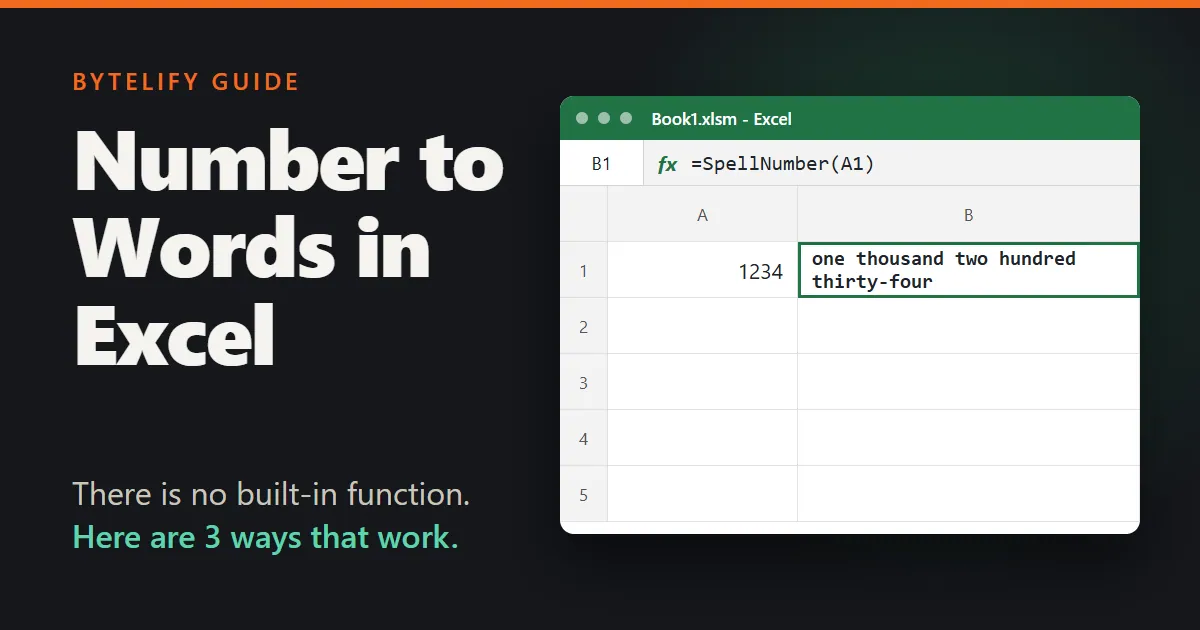
You typed 1234 in a cell and want “one thousand two hundred thirty-four” next to it. The search for number to words in Excel returns formulas, macros and add-ins, and it is hard to tell which one fits. This post shows how to convert number to words in Excel in three ways that work. It is Part 1 of a short series on turning numbers into words.
The short version
- Excel has no built-in function that spells out a number. Microsoft’s own support article gives a macro instead.
- For a few numbers, use a free converter and paste the words into the cell.
- For a whole column, use Microsoft’s SpellNumber macro, or a long formula if you cannot use macros.
Words You Need First
- Formula: something you type in a cell that starts with
=, such as=A1+B1. - Macro: a small program saved inside the workbook, written in VBA (Visual Basic for Applications).
- Lakh and crore: Indian units. One lakh is 1,00,000 and one crore is 1,00,00,000.
Is There a Number to Words Formula in Excel?
Not a built-in one. Excel can add, round and join text, but it has no function that writes numbers as words. Microsoft’s support article “How to convert a numeric value into English words in Excel” (KB 213360) gives a macro for it instead.
The most common wrong turn is the TEXT function. It only changes how a number looks. TEXT(1234,"0.00") returns 1234.00 and never letters.
Long formulas that spell numbers do exist. They are built by hand from many smaller functions, so they are not built in. Way 3 below covers them.
Number to Words in Excel: 4 Options at a Glance
| Way | Best for | Setup |
|---|---|---|
| Free converter | A few numbers, a cheque, one invoice | None |
| SpellNumber macro | A full column that must update | About 5 minutes |
| Long formula, no VBA | Files where macros are blocked | Paste a long formula |
| Add-in | Teams that already use one | Install it |
Way 1: Convert Number to Words in Excel with a Free Converter
This is the quickest. Open the Number to Words converter, type the number, copy the result and paste it into the cell. It runs in your browser, so nothing you type is sent anywhere.
Here is what you get for 1234:
one thousand two hundred thirty-four
The catch is that it is manual. If the number in the cell changes, the words do not change with it.
Way 2: Convert Number to Words in Excel with the SpellNumber Macro
Use this when the words must update by themselves. Microsoft publishes the code in KB 213360, so copy it from there and not from a blog.
- Open your workbook and press
AltandF11to open the VBA editor. - Choose Insert, then Module.
- Paste the SpellNumber code from Microsoft’s page into the module and close the editor.
- In any cell, type
=SpellNumber(A1), where A1 holds your number. - Save the file as an Excel macro-enabled workbook (
.xlsm). A normal.xlsxfile cannot keep the macro.
Note: steps 1 and 2 match Microsoft’s guide Create custom functions in Excel, which says to press
AltandF11(on a Mac,Fn,AltandF11), then click Insert, then Module.
Treat the code as an example and test it on a few values. If you send the file to someone, they see the words only if the macro travels with the workbook.
If You See #NAME?
Excel shows #NAME? when it does not recognise a function name. For SpellNumber this usually means:
- The macro is not in this workbook. Paste it into a module of the same file.
- The file was saved as
.xlsx, so the macro was dropped. Save it as.xlsm. - The name is mistyped. It must read
SpellNumber.
Way 3: Number to Words in Excel Formula Without VBA
Some sites publish one long formula that spells a number with no macro. According to Chandoo and ExcelDemy, these are built from functions such as LET, LEFT, MID, TEXT and CHOOSE.
Know the limits before you pick one:
- The
LETversions need a recent Excel, such as Excel 365 or 2024. - Chandoo’s version is described as working up to 999,999.
- They are long and hard to edit, and we have not tested them.
Note: this section reports what those pages say. Test any formula on a few values before you rely on it for an invoice.
An add-in is the fourth option. Some paid and free add-ins add a number to words button to Excel. We have not tested any, so we do not rank them.
Number to Words in Excel Rupees: Lakh and Crore
Methods built for dollars say “million” and “billion”. If you need rupees, the words change to lakh and crore:
| Number | International | Indian |
|---|---|---|
| 1234567 | one million two hundred thirty-four thousand five hundred sixty-seven | twelve lakh thirty-four thousand five hundred sixty-seven |
The converter has an Indian option. Pick rupees and “only”, and 1234567 becomes “twelve lakh thirty-four thousand five hundred sixty-seven rupees only”. That is the form used to convert number to words in Indian rupees on cheques and invoices.
Remember: the words and the figures on a cheque must say the same amount. Read both once before you sign.
Which One Should You Pick?
If you have fewer than ten numbers, use the converter. If you have a column that keeps changing, take 5 minutes and add the macro. If macros are blocked, try a formula and test it first.
Next in this series: how to go the other way and turn words back into numbers.
Key Takeaways
Excel has no built-in function for number to words.
Microsoft's own support article gives you a macro for it. No ready-made function will spell out 1234 for you.
The TEXT function formats a number. It does not write it out.
TEXT(1234,"0.00") gives 1234.00, not words. People often try it first and get stuck.
A converter is the fastest way for a few numbers.
Type the number, copy the words, paste them into the cell. No macro and no setup.
A macro or a long formula works for a whole column.
Microsoft's SpellNumber macro needs a macro-enabled file. Long formulas need no macro, but some need Excel 365 and have limits.
Indian amounts need lakh and crore, not million.
12,34,567 is twelve lakh thirty-four thousand five hundred sixty-seven. Check that your method supports it before you use it on a cheque.